Download, install, and launch ED5 MMO Studio.
Installation & Setup
Getting started takes just a few minutes.
Download
Download the ED5 MMO Studio installer for your platform from the official website or your purchase portal:
- Windows —
.exeinstaller - macOS —
.dmgdisk image - Linux —
.AppImage
Install
Run the installer and follow the on-screen prompts. The Studio installs like any other desktop application — no extra tools or dependencies required.
First Launch
When you open the Studio for the first time:
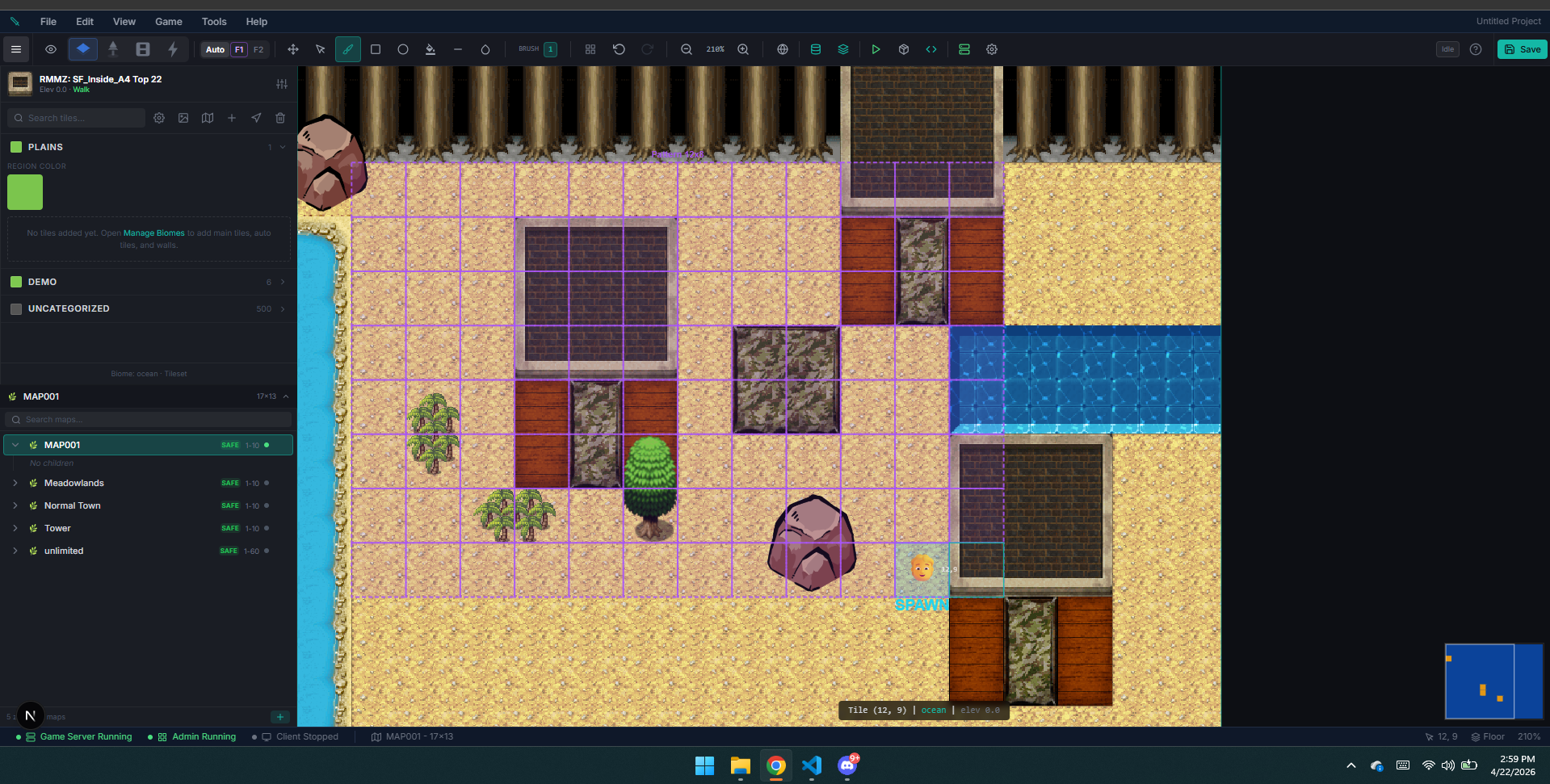
1. Studio opens directly into the Zones workspace — the world editor fills the main window right away 2. The left app sidebar switches between major sections like Zones, World, Items, Settings, and Import / Export 3. Inside Zones, the editor is split into a left map browser, a center canvas, and a right panel for tilesets, objects, or events 4. A default database is created automatically — this stores all your game data locally
Settings
Open Settings from the left app sidebar to configure:

| Setting | Description |
|---|---|
| Database Mode | Local (default, no setup needed), Docker, or Remote PostgreSQL |
| Game Server Port | Which port the game server listens on (default: 3001) |
| Client Port | Which port players connect to (default: 3000) |
| Admin Port | Which port the Studio editor runs on (default: 3002) |
| Database URL / PGlite Data Dir | Connection string for Docker/Remote modes, or the local embedded-DB folder |
| Auto-check for updates | Check for Studio updates on startup |
| Stop local services when admin closes | Shut the embedded server/client down when you close the editor |
| Project Template URL | Starter template used when creating new projects |
The map editor's auto-save interval is set separately from the editor's File → Autosave menu (Off / 5 / 10 / 15 min), not in Settings.
For most users, the default settings work perfectly.
Changing Database Mode
Docker Postgres and Remote Postgres both need a Database URL — a Postgres connection string like postgres://user:password@host:5432/database. Studio will not let you save either mode without one, because the game server cannot start without a database to connect to.
| If you see | What it means |
|---|---|
| "Remote Postgres needs a Database URL" | You changed the mode but left the URL blank. Paste the connection string, or set the mode back to PGlite (Embedded). |
| "Database URL must start with postgres://" | You pasted your game server address (wss://…) into the database field. Those are two different settings — the server address lives in Server Control → Connection. |
| "missing a database name" | The string stops at the port. Add the database on the end, e.g. …:5432/postgres. |
| The server says "Database configuration is invalid" | The URL is reachable but the credentials or database name are wrong. Studio deliberately does not retry this — fix the URL and start the server again. |
> PGlite (Embedded) is always a safe place to go back to. It needs no URL and no setup. If a database change leaves your project unable to start, reopen Settings → Database, set the mode back to PGlite, save, and start the server — you do not need to restore a backup. > > If the editor itself will not open — it freezes or sits on the loading screen because the database it points at never answers — you cannot reach Settings, so do it from the launcher instead. Close the editor window, hover the project under Recent Projects, and click Use embedded DB. That switches the project back to PGlite without opening it, keeps your connection string so you can try again later, and changes nothing else. You do not need to back up or restore the project folder first.
#### Using Supabase
Supabase gives you more than one connection string, and they are not interchangeable:
| String | Host | Use it? |
|---|---|---|
| Transaction pooler | aws-N-<region>.pooler.supabase.com:6543 | Yes — use this one. Reachable over IPv4 and IPv6, and it shares its connections, so the editor, the local game server and your live server all fit. It is what the engine uses internally anyway. |
| Session pooler | aws-N-<region>.pooler.supabase.com:5432 | Not recommended. Every open connection holds one of a small number of slots (about 15); the editor, the game server and your live server together can fill them, and the editor then freezes while it retries. |
| Direct connection | db.<ref>.supabase.co:5432 | Only from a server. It resolves over IPv6 only — the same string that works on your VPS will usually time out on a laptop. |
Copy one from Supabase → Project Settings → Database → Connection string → Transaction pooler, and remember to replace [YOUR-PASSWORD] with your real database password. Studio warns you if you paste the Session pooler or the direct connection string.
> If the editor cannot reach a database your VPS connects to happily, or freezes after several connection retries, check which string you pasted — switch to the Transaction pooler string. Your VPS can keep the string it already has.
#### Saving a database change
Studio only acts on settings you actually changed. Saving a new Docker or Remote database shows Preparing the database next to the Save button until the schema is ready — leave Studio open until it finishes. Saving other settings (ports, updates) does not touch your database.
#### The first switch takes a few minutes
When you save a Docker or Remote database for the first time, Studio has to create the engine's schema on it — 200+ migrations, one round trip each. On a remote server that is minutes, not seconds. Studio tells you it has started and logs Database schema is up to date ✓ when it finishes. Leave it open.
If the schema cannot be created — the database is unreachable, the credentials are wrong, or it takes so long that Studio gives up — the switch is undone and your previous database setting is kept, so the editor still opens. You will see the reason in Settings. Nothing is left half-applied, and you never need to restore a backup to recover.
Quick Test
1. Stay in Zones when Studio opens, then click Create first zone in the map browser or use the + button at the bottom-left 2. Paint some terrain with the brush tools 3. Launch Game → Playtest (Ctrl+P) from the editor menu bar to open the game client 4. You should see your character standing in the zone you just created!
Next: Quick Start Tutorial — build your first zone and add content.