Export your game and get players connected.
Publishing Your Game
Once your game is ready, the Studio provides tools to package and deploy it for players.
Building a Player Launcher#
The Studio can export a standalone Player Launcher — an Electron app that connects to your game server:
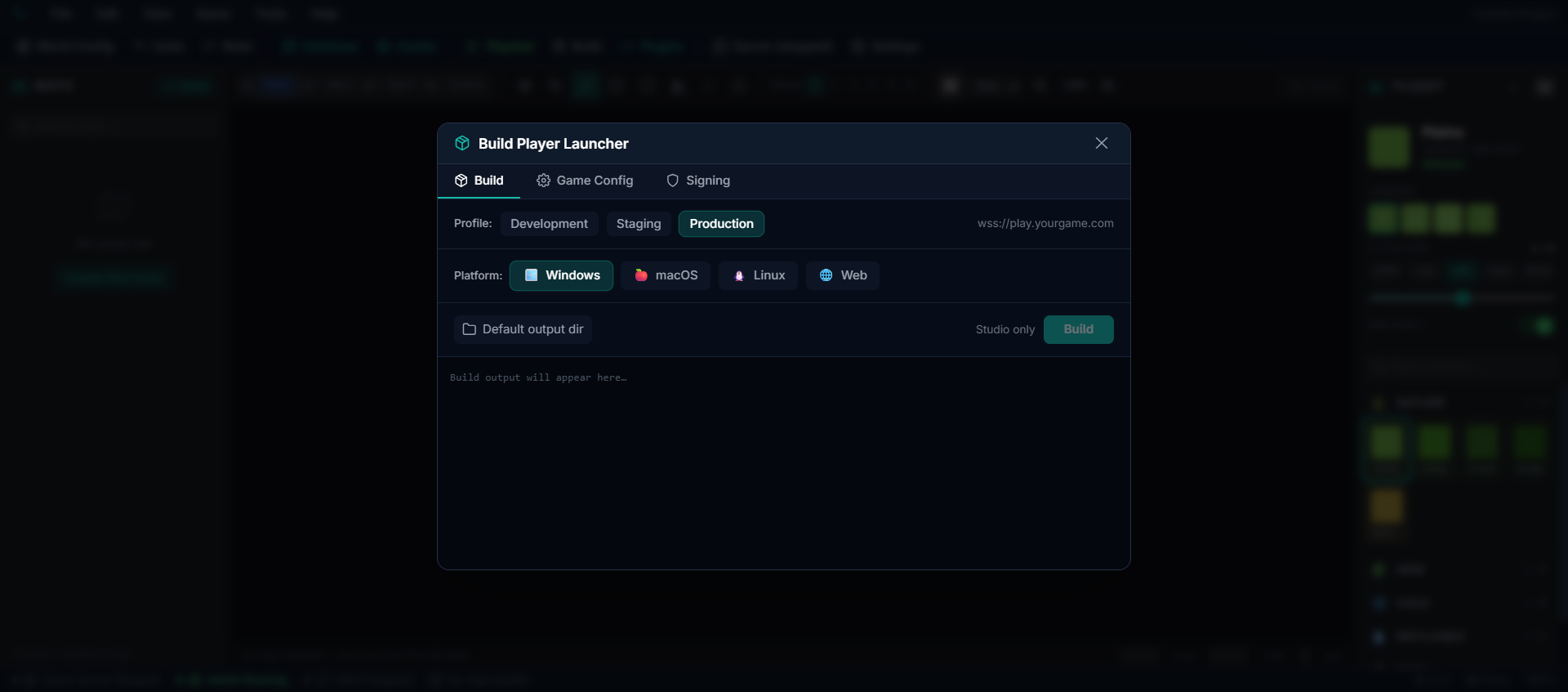
How to Build#
- Open Game → Build Player Launcher (Ctrl+B) from the editor menu bar in Studio
- Choose your target platforms (Windows, Linux, Web). macOS launchers can only be built from Studio running on a Mac, and the Studio app is Windows-only for now.
- Select the Production profile
- Configure the server URL — this is where your game server will be hosted
- Click Build to generate the launcher
The result is a downloadable installer that your players can use to connect.
Get your game online#
Your game is three pieces: the client (what players open), the game server (the authoritative WebSocket server, port 3001), and a database. The Studio desktop app and the admin authoring tools are not part of what players touch — keep those private and put only the game-only stack online.
Game-only = client + game server + database. Never expose the admin/Studio app or your database to the public internet. Players only need the client URL and the game server's WebSocket.
There are two ways to host it:
| Path | Who runs the server | Status |
|---|---|---|
| Self-host on your own VPS | You | Available — export Build → Export Game → Server, then see Self-Hosting on a VPS |
| Managed hosting | ED5 (one-click) | Available — private beta (fleet-capped); supports sharding + optional autoscale — see Managed Hosting |
Once your server is online, you can hand players a public play link from your ED5 account dashboard:
- Open your project and register your server under Connect your own VPS — paste its public URL and WebSocket (
wss://) URL. - Turn on the Public play link (optionally Allow guests, so people can play without an account).
- Share the link — players join at
<your-client-url>/play/<your-game-slug>.
The play link only ever exposes the client and the game-server WebSocket — never your admin URL or database credentials.
Hosting Your Game Server#
To let players connect from anywhere, you need to host the game server online. Options include:
| Hosting Option | Best For |
|---|---|
| VPS (Virtual Private Server) | Full control, affordable (DigitalOcean, Linode, Hetzner) |
| Dedicated Server | Large player counts, best performance |
| Cloud Platform | Scalable (AWS, Google Cloud, Azure) |
The game server needs:
- A machine running Linux, Windows, or macOS
- At least 4 GB RAM (8–16 GB recommended)
- A stable internet connection
- Ports open for WebSocket connections
Database#
Do not use the local embedded database (PGlite) in production. PGlite is a single-process WASM build — it cannot be shared between the game server and a load-balanced admin, and a single crash can corrupt the on-disk store. See Production Database for managed-Postgres recommendations, sizing, and the migration workflow.
Player Connection#
Once hosted, the game client connects via WebSocket:
- Client port (browser/launcher): 3000 by default
- Game server port: 3001 by default
- Admin port: 3002 by default
- Secure connections: terminate HTTPS/WSS at a reverse proxy (nginx, Caddy, Cloudflare Tunnel, etc.)
- Players access the game through the Player Launcher or a web browser
What Players Need#
| Method | Requirements |
|---|---|
| Player Launcher | Download and install the exported launcher app |
| Web Browser | Navigate to your game's URL — no install needed |

This screen is yours to brand — layout, backdrop art or video, wordmark, colors and every label are authored in the Login Screen tab of the UI & HUD editor.
Monitoring#
Keep an eye on your game server's health:
- Tick time — should stay under 50ms for smooth gameplay
- Player count — active WebSocket connections
- Memory usage — should remain stable over time
The server logs warnings automatically if ticks are running slow. Opt-in Sentry scaffolding is included in the game server and all Next.js apps — no-op unless SENTRY_DSN is set and @sentry/node / @sentry/nextjs is installed in that app.