The visual isometric map painting tool.
Zone Editor
The zone editor is where you build every location in your game — towns, dungeons, forests, deserts, and more. It's a visual map painter with an isometric perspective, similar to RPG Maker but for MMO-scale worlds.
Creating a Zone
The app opens in Zones by default. To add a map, use Create first zone, the + button at the bottom of the left map browser, or right-click empty space in the map tree and choose New Root Map. Then configure the zone properties:
| Property | Description |
|---|---|
| Name | Display name shown to players (e.g., "Whispering Woods") |
| Zone Type (editor category) | Wilderness, Town, Dungeon, Arena, Instance, or Safe Zone — an organizational tag that sets the map-tree icon and color. Gameplay comes from the PvP rule and the separate Interior toggle, not from this category |
| Default Biome | The base terrain type for this zone |
| PvP Rules | Safe, PvP, Full Loot, Full Loot All, or Arena |
| Level Range | Suggested minimum and maximum player level |
| Chunk Range | X/Y boundaries that define the zone's total size |
| BGM | Background music track |
| Combat BGM | Music that plays during combat encounters |
| Ambient Sound | Environmental audio loop (wind, birds, water, etc.) |
Editing Layers
Editing is organized into layer tabs, so you switch what you're working on rather than flipping a global mode:
| Layer | Purpose |
|---|---|
| Floor | Paint terrain, biomes, and elevation |
| Walls | Draw the building/wall layer (hidden for top-down games — see Buildings & Walls) |
| Object | Place decoration and props across four stacking sublayers |
| Region | Paint overlay regions (spawn zones, biome/spawn regions) that don't render in-game |
| Events | Place and configure interactive triggers, dialogues, and cutscenes |
Pick the active layer from the tabs in the toolbar; each layer has its own visibility toggle.
Painting Tools
| Tool | Shortcut | Description |
|---|---|---|
| Hand | H | Pan the map view by clicking and dragging |
| Pencil | P | Paint individual tiles one at a time |
| Rectangle | R | Drag to fill a rectangular area |
| Circle | C | Drag to fill a circular area |
| Flood Fill | F | Fill all connected tiles of the same type |
| Eraser | E | Remove tiles or objects from the current layer |
| Eye Dropper | I | Click a tile to copy its properties |
| Select | S | Marquee-select tiles/objects to move, copy, or delete |
Brush Options
- Brush size — adjustable from 1 to 8 tiles
- Autotile mode — the editor automatically picks the correct edge/border tile variant so biome transitions look natural
- Elevation painting — set terrain height to create cliffs and valleys
- Shift + paint — locks autotile to the exact source tile (no neighbor auto-connect rewrite). Useful for placing water, walls, or fences that should ignore surrounding terrain.
Right-Click Tools
Right-click is reserved for quick-capture operations on the map:
| Input | Action |
|---|---|
| Right click | Eye-drop the tile (and objects) under the cursor into the active brush |
| Right drag | Marquee-copy a full-stack area (tile layers + object layers L1/L2/Fringe/Fringe2) |
| Shift + Right click | Capture a single-tile stack |
Captured selections paste with the full stack intact. The cursor shows a ghost preview of what will be stamped.
Tileset & Object Palettes
The palette on the right shows tiles organized by biome and objects organized by category. In both panels a dropdown at the top picks the category — it lists every biome or category with its count (and, for biomes, its colour), filters by name once there are more than eight, and takes arrow keys and Enter. Everything below the dropdown is the category you picked, so the panel is tiles and objects rather than a stack of headers.
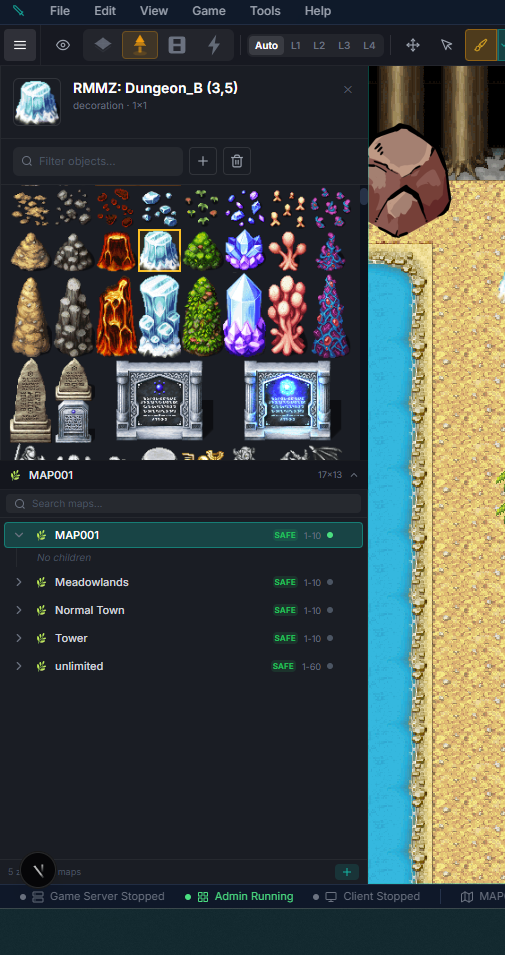
Both panels support marquee drag-select:
- Drag across multiple tiles to build a pattern brush that stamps the exact shape you selected, even across different tileset sheets
- Drag across multiple objects to build a multi-object brush that places all of them as a group
- Click empty space in the palette to clear the current brush/selection
- Selected cards are highlighted with a bright cyan border
- In Edit mode the same drag does something else — dragging a tile you have ticked rearranges the palette instead of building a brush. Press Done and a drag is a pattern brush again. See Organizing Your Maps
Placing Objects Bigger Than One Tile
The tile you click is where the object's feet go: the bottom-center of its footprint (in isometric, its front corner). The footprint spreads up and out from there — a 3×2 barrow covers the clicked tile, one tile either side, and the row above. The ghost, the placed art, the orange selection box and the X / O passage marks all cover exactly those cells, and the game blocks exactly those cells — so if you can see a prop, you can't walk through it, and the ground beside it stays open.
| Gotcha | What to do |
|---|---|
| A prop is walkable although it looks solid | Open it in the Object Creator and mark its body cells X in the passage grid — the marks in the editor show you which cells its definition allows |
| Standing just south of a tall prop, the player is drawn behind it | Check the prop's Draw on top setting: only overhead art (canopies, archways) should draw over characters |
| An RPG Tools map imported before this rule shows props shifted | Re-import the map — the importer now places every sprite by its top-left, the same way you would by hand |
Radial Context Menu (Event Mode, Touch-Friendly)
When you're in Event Mode, long-press (touch) or right-click a tile to open a radial context menu with the event actions laid out around the cursor. It makes tablet editing practical and keeps desktop hands close to the cursor.
- On empty tiles the menu offers creation shortcuts: Core Event, Portal, NPC, Spawn, Monster, Chest, Sign, Trigger, Light, Resource.
- On an existing event, the menu switches to edit actions: Edit, Select, Rename, Copy, Delete (or a trimmed set for placed items: Edit / Select / Delete).
- Double-click an empty tile to create a default event, or an existing event to open its editor directly — no menu required. Clicking anywhere on an event's sprite counts, not just the tile under its feet.
- Picking a creation shortcut places the event and opens its editor, so you can choose the NPC, loot table or destination straight away instead of hunting for the marker you just dropped.
Spray Brush & Shift Modifiers
Shift combines with most painting tools to change how the brush behaves:
- Shift + paint (Pencil / Rectangle / Circle) — spray mode. Tiles are placed with a feathered random pattern inside the brush footprint, perfect for scattering grass tufts, pebbles, or decals.
- Shift + Eyedropper / Right-click — capture a single tile stack (ignoring the marquee behaviour).
- Shift + stamp (after a pattern capture) — preserve the exact autotile bitmasks from the source region so water/wall/path patterns stamp verbatim instead of recalculating edges against their new neighbours.
Free-Position Object Placement
Objects can be placed either on the tile grid or at a sub-tile pixel offset:
- Grid mode (default) — objects snap to the tile they're dropped on.
- Free mode — objects keep a per-instance
offsetPxX / offsetPxYin pixels, letting you nudge a barrel a few pixels off-center or overlap two objects precisely. Toggle Free mode in the Objects palette, or hold Shift while placing to flip the current mode for that single stamp. - Paint mode on the Pencil switches between pencil (one tile per click) and brush (continuous paint while dragging).
Built-In Terrain & Autotiles
The tile palette ships with a full painted autotile library — grounds, water, overlays and a complete building set — so you can lay out a world before importing any art of your own. Every block is original engine art.
Where to find them: open the Tileset palette and pick a category from the dropdown at the top of the panel — Grassland (the biome-neutral set), each biome in turn — Desert, Snow, Volcanic, Swamp — and Overlays, which holds every L2 decal and fence in one place. The dropdown lists every biome with its colour and tile count, and grows a filter box once a project has more than eight of them.
| Set | What's in it | Where |
|---|---|---|
| Ground terrains | Grass, dirt, stone and paved paths, plus each biome's own ground: sand, rocky sand, cracked clay, snow, packed snow, frozen earth, ash, basalt, scorched earth, marsh, mud and peat. Every one is a pair block — the terrain painted over its biome's base grass — so edges never show a seam. | Grassland + each biome |
| Animated liquids | Lake, deep and lily water, oasis, ice water, swamp and poison water, lava, pool water, and a waterfall pair. Three frames, animating in the editor and in game. | Grassland + each biome |
| Overlays | Grass tufts per biome, moss carpets, pits, craters, cracks, darkness, and wooden fences. These paint on the overlay layer (L2) so they sit on top of whatever ground you've already laid. | Overlays |
| Roofs & walls | 24 building blocks — barrel tile, shingle, fish-scale, slate, thatch and wood-shake roofs; brick, ashlar, plank, board-and-batten, log, stone and plaster walls. | Grassland → Walls |
| Cliffs & trees | Six cliff faces (rock, sandstone, snow, ash, mossy) and three tree trunks (oak, pine, birch). | Grassland + each biome |
| Wall tops & plateaus | The surface that caps a wall or cliff: stone and brick coping, hedge and tree crowns, snow drift, and plateau tops in grass, dirt, sand, snow, rock and ash. | Grassland + each biome |
Painting with them
1. Click a tile in the palette, then paint. Autotiles connect to their own neighbours automatically — corners, edges and inner corners are chosen for you. 2. Walls, cliffs and trunks are wall-type tiles and sit with the rest of their biome's tiles, below the floors. They connect on their four sides only, which is what gives a building a clean corner. 3. Build a wall or cliff as two pieces: paint the top (a wall top or plateau) on the row you want the surface, and the matching face (a wall, cliff or trunk) on the row directly below. That pairing is what makes it read as height rather than a flat slab. 4. Overlays go on layer L2. Select the overlay layer before painting them, or they'll replace the ground you already laid instead of sitting on it. 5. Shift + paint locks the autotile shape, so a tile keeps the exact edge you picked instead of re-connecting to its neighbours — useful for a one-tile fence post or an isolated rock.
Gotchas
- Walls, cliffs and trunks are not walkable. Players collide with them, which is intended — if
- A biome only appears in the palette dropdown once it exists. The library installs the Desert,
- Publish before checking in game. New tiles render in the editor immediately, but the running
- The library installs on a new project automatically. On an existing project, re-run the seed to
Built-In Objects
The Objects palette ships with several hundred ready-made objects across six built-in categories — trees, rocks, plants, props, lights, buildings, furniture, and ground decals — so you can build a world before importing any art of your own:
| Category | Objects | What's in it |
|---|---|---|
| Painted Props | 116 | The core set in a painted-cartoon look, matching the built-in Grassland terrain. |
| Pixel Props | 220 | The same core items redrawn as 16-bit pixel art in a classic JRPG top-down view, plus 104 extra outdoor props — tents, street lamps, wells, graves and shrines, market crates, farm crops, a snowy set and a ruins collection. For maps built from imported RPG Maker tilesets. |
| Fantasy Props | 100 | Original MMO fixtures: waypoints and portals, quest boards, auction stalls, crafting stations, gathering nodes, arcane and dark-ritual pieces, enchanted flora, homestead buildings, festival and arena dressing. |
| Epic Structures | 38 | Landmark set pieces from 2×3 up to 4×8 tiles — castle keeps, cathedrals, guild halls, wizard towers, colossal statues, mountains, a volcano and a world tree. |
| Interiors & Housing | 70 | Indoor furnishing for player housing, taverns, shops and dungeons: beds and seating, kitchen and tavern fittings, storage, lighting, wall-mounted pieces, rugs and hobby items. |
The pixel-art categories share one visual style, so you can mix Fantasy Props, Epic Structures and Interiors freely on the same map.
- They are real game objects. Each one has its own sprite, footprint, and passage rules, so anything you place shows up in your running game after a publish — not just in the editor.
- Lit objects glow. Campfires, torches, braziers, lanterns, glowing mushrooms, and crystals come with pre-authored light emission that works with the day/night cycle.
- Passage is pre-set. Trees and boulders block movement; flowers, decals, and small props are walkable. You can still override passage per placement with the palette's quick edit modes below.
- Big pieces claim the space they cover. An Epic Structure's footprint is its real collision area, so a 4×8 castle keep blocks all 32 tiles under it. Leave room before you stamp one.
- Swap in your own art any time. These are ordinary object definitions — open one in the object editor and point it at your own media to reskin every placed copy at once.
pnpm --filter @ed5-mmo-studio/db db:seed:demo-objects) and publish to install the sprites. The same run also renames the two legacy palette categories — Demo Objects becomes Painted Props, Demo Objects 2 becomes Pixel Props — leaving any object you filed under a category of your own where you put it.
Quick Property Edit Modes (Objects Palette)
The Objects palette has special edit modes that let you fix object metadata without opening the object definition:
| Mode | What It Edits | Left-click | Right-click |
|---|---|---|---|
| Passage | Whole-object passage (1×1 objects) | Cycle O → X → ☆ | Cycle backward |
| Ladder | Ladder flag (H) | Toggle on | Toggle off |
| Bush | Bush flag (B — character partially hidden) | Toggle on | Toggle off |
| Draw-on-top | Always-above flag (A) | Toggle on | Toggle off |
| Select | Multi-select for bulk delete | Click to add to selection | — |
Multi-tile group objects show a purple ring in the palette. Left-click selects the whole group; right-click opens a drag-selector so you can pick specific cells of the multi-tile footprint as your brush.
Passage mode only takes 1×1 objects. For a multi-cell object or a sheet group, open it in the object editor instead: the Passage Grid there shows the whole footprint, each click cycles that one cell, and Save writes every member.
What the three passage states mean
| State | Can the player stand here? | Use it for |
|---|---|---|
| O | Yes — even over water or a cliff | Bridges, docks, stairs, planks, rugs |
| X | No | Trunks, walls, crates — anything solid |
| ☆ | Whatever the ground says | Flowers, lily pads, canopies, banners — any decoration |
O means "you can stand on this." It brings its own footing, so an O cell laid over impassable terrain makes that tile walkable — that is exactly how you build a bridge across a river or a staircase up a cliff: paint the water or rock as usual, then place the planks or steps on the object layer above it.
☆ means "the ground decides." A star never decides passage; it defers to whatever is underneath, so lily pads and overhanging branches stay pretty without turning a lake into a walkway. Every new object starts as ☆, and so does everything the RPG Tools importer creates (its painted Path layer is the collision there). Pick O only when the object really carries footing.
A tree that should stop you needs X on its trunk cells and ☆ on the leaves. Marking a whole tree ☆ makes it fully walk-through by design.
☆ does not draw the object above the player. That is the separate Draw-on-top flag — the palette's Above mode, or the checkbox in the object editor. The tileset importer sets both when you pick ☆ there; the object editor and the palette cycle set passage only. A canopy you walk under wants ☆ and Draw-on-top; a rug wants ☆ alone.
One exception keeps imported worlds honest: where a map tile is authored as blocked on all four sides, that verdict wins over an object's O, so a single stray O can never open a cliff face in a bulk import.
Show passability
Turn on Show passability in the map toolbar to see what the game will do, tile by tile, with terrain and objects combined the way the server combines them:
| You see | It means |
|---|---|
| Red tile with an X | Nothing can stand here — blocked terrain, a tileset with collision, or an X object cell |
| An O on a plain tile | The ground is blocked but an object carries footing over it: a bridge doing its job |
| Nothing | Walkable ground. A ☆ decoration over grass shows nothing because it changes nothing |
Gotchas:
- The view is the server's rule, not the raw symbols. To see what one object is authored as, open it in the object editor.
- Blockers that are not authored on the map — harvest nodes, chests, live props — are not shown.
- Objects made before September 2026 on a hand-built project kept their O. If a decoration opens ground it should not, cycle it to ☆; the passability view shows exactly where.
- Hosted and managed worlds pick up changed passage after a publish.
Shadow Groups
A prop stamped tile-by-tile from a marquee is not one object — every tile is its own placement — so each tile casts its own shadow. On a 4x4 tree that is sixteen overlapping shadows, and it looks wrong.
You fix it once, on the prop, not once per placement. In the Objects palette, click the property-mode button until it reads Shadow group, then drag across the parts that belong to the same prop. They become one shadow group, and every stamp of that prop from then on casts a single shadow.
| Action | What it does |
|---|---|
| Drag across a prop's parts | Groups them — one shadow for the whole prop, at every placement |
| Shift + drag | Clears the grouping from the parts you drag over |
| Click a grouped part | Removes just that part from its group |
Two identical trees standing side by side still cast two shadows: each part remembers its slot inside the prop, so the engine can tell one planted tree from the next even when they touch.
You don't have to group the base. A shadow starts where the prop meets the ground, so a group reaches down on its own: from its lowest row it takes in the tiles directly below that belong to the same prop and aren't already grouped.
- Group just the canopy of a 1x2 tree → it takes in the trunk → one shadow, from the trunk
- Group three of four rows of a 2x4 tree → it takes in the last row → one shadow, from the base
- Art that genuinely floats — a hanging sign with nothing beneath it — has nothing to take in. Set that part's Shadow mode to None in the object editor instead; muting any part of a group mutes the whole prop
Grouping affects shadows only — never walkability, passage or draw order.
Copy, Paste, and the Pattern Brush
- Right-drag on the map creates a marquee that copies the complete tile stack — both floor sublayers plus all four object sublayers — into a Pattern Brush. The cursor shows the pattern's ghost so you can see what will stamp.
- Shift + Right-click captures a single-tile stack the same way.
- Ctrl+C / Ctrl+V copies and pastes the active selection, whether that's a tile region or a selected event.
- Click empty space in the tileset/object palette to clear the current pattern and return to the default brush.
Undo / Redo
Undo/redo is backed by a background web worker that stores XOR-compressed diffs of each stroke, so even huge fill operations can be reversed cheaply.
- Ctrl+Z undoes, Ctrl+Y (or Ctrl+Shift+Z) redoes.
- The history keeps up to 80 strokes. Each continuous drag counts as a single stroke, so dragging a long path uses only one slot.
- Redo is cleared as soon as you make a new edit, as expected.
View Mode, Parallax, and Day/Night Preview
- View mode toggle — switch between Isometric and Top-down rendering of the same map data. Useful for quickly laying out a town's footprint top-down before polishing it isometrically.
- Parallax background — attach a parallax image to the zone that scrolls behind the map as the player moves; configure its scroll speed per axis.
- Day/Night preview — preview the zone at any time-of-day without waiting for the in-game clock. Toggle the preview and drag the time slider to check how lighting, shadows, and ambient tint affect your art.
- Spawn points — every map can carry any number of cyan SPAWN markers. Right-click a tile and choose Set Starting Location to make it the primary marker (labelled SPAWN) and this map the world's starting map: new characters land there. Choose Add Spawn Point to add another marker (SPAWN 2, SPAWN 3, …), and right-click a marker to Remove Spawn Point. Markers move the moment you set them. To reposition one, switch to Event mode with the Select tool and drag it to a new tile — exactly like moving an event. If an event sits on a marker's tile, the click picks the event; drag the marker from a tile that has none, or use the right-click menu. Saves happen in the background and an error toast puts the markers back if one fails.
- Where a player respawns — after a death the player comes back at the nearest spawn point on the map they died in. A map with no spawn points sends them to the nearest spawn point on any neighbouring map on the overworld board (they change maps), and if no map has one, to the world's starting location. Dungeon instances and arenas keep their own rules (checkpoints, entrance, team spawns). A Location with Acts as a spawn point on (Database → Locations) counts as a spawn point at every marker where it is placed, so a wayshrine or a camp can be somewhere to come back to without a SPAWN marker of its own.
Renderers & Performance
The zone editor draws the map with the GPU renderer by default — a PixiJS 8 / WebGL renderer that bakes blended-terrain chunks, keeps only what's near your viewport resident, and stays smooth on large worlds and on phones and tablets. Editor gizmos (selection, building tools, markers) draw on a crisp overlay above it.
The GPU renderer now draws everything the editor shows, including the two things it used to hand back to the CPU:
| What | On the GPU renderer |
|---|---|
| Day/Night preview | The night and dusk tint, every light's glow, and torch flicker are composed on the graphics card. Flicker only changes a light's brightness instead of repainting the whole view, and panning or zooming moves the lights rather than redrawing them — so a night scene with many lamps costs you nothing to fly around. |
| Autotile debug compass (Shift+D) | The four dots and the connection number over each floor tile now appear on the GPU renderer too. Both renderers read the same neighbour bits, so the numbers always agree. |
| Terrain, cliffs, buildings, objects, markers, selection | All native since earlier releases — the overlay above the map is gizmo chrome only. |
Both renderers show the same picture. The GPU renderer is the reference; the compatibility renderer is kept deliberately as the fallback and is not going away.
Switching renderers
If your device's WebGL is slow or broken, switch to the compatibility renderer (Canvas2D) with the GPU renderer toggle under Settings → Editor (open Settings from the database menu) — it's a per-user preference stored in your browser, and flipping it live-swaps the renderer with no reload. If the GPU renderer can't start at all, the editor falls back to the compatibility renderer automatically and tells you.
| Setting | Where | What it does |
|---|---|---|
| GPU renderer | Settings → Editor | On (the default) draws the map with WebGL. Off uses the compatibility renderer. Per-user, stored in your browser, applies immediately. |
?pixi=0 | Add to the editor URL | Forces the compatibility renderer for that tab only, whatever the setting says — the escape hatch when the editor won't draw and you can't reach Settings. |
?pixi=1 | Add to the editor URL | Forces the GPU renderer for that tab only. Useful for checking whether a drawing problem is renderer-specific before you report it. |
Neither URL parameter changes your saved setting; close the tab and your preference is back.
The autotile debug compass
Press Shift+D over the map to inspect why an autotile picked the sprite it did. Each floor tile gets a dark wash, four dots, and a number:
| You see | Meaning |
|---|---|
| Green dot | The neighbour on that side uses the same floor tileset, so the autotile connects to it. |
| Red dot | No matching neighbour on that side — the autotile draws an edge there. |
| The number | The four sides packed into one value (north 1, east 2, south 4, west 8). Two tiles showing the same number must draw the same autotile piece. |
Press Shift+D again to turn it off. It's a debug view, not part of your map — it never saves and players never see it.
Very large imported libraries (for example 30k+ RPG Maker MZ decorations) use row virtualization in the object panel to keep scrolling and panel-switching responsive.